Start here — owner and manager
What the system does
propertiesmanager.app connects property records, leasing, finance, maintenance, security, visitors and tenant support. These services are included together. Different login departments show different work and permissions; a company does not need to buy or activate each service separately.
This guide describes the current application reviewed on 22 November 2026. Button visibility depends on your role, assigned properties and the record's current stage. Sample amounts are illustrations, not company policy.
Sign in to your company
- Open your company's address: https://YOUR-COMPANY.propertiesmanager.app. Replace YOUR-COMPANY with the address approved for your company.
- Choose the relevant department, such as Company administration, Property management, Leasing, Finance, Maintenance or Security. Tenants and vendors use their own portals.
- Enter your individual username and password. Choosing a department does not grant permission to that department.
- Check the company name and property context before working. Sign out when finished. To test different users on one computer, use separate browser profiles or sign out before switching.
The public homepage's Log in route can help locate a company portal using its company address.
First-time company setup
- The company owner registers the company, its address, logo and owner details using a company-domain email. Personal/free email addresses are not accepted.
- Open the verification email and click Confirm my email on the webpage. Opening the email alone is insufficient.
- Wait for platform-owner approval. Verification and approval are separate steps. After approval, the branded company subdomain is available with all departments.
- In Company administration, appoint a company administrator and the required department users. Assign property access deliberately.
- Add the properties and unit counts/types. Leasing completes individual apartment/villa numbers and tenant records.
- Finance fills in the legal billing identity, TRN, bank details and invoice terms. Download a sample PDF to review the result.
- Appoint the security head and property security managers, create gates and assign approved guards. Enable visitor logging for the relevant property.
- The company administrator sets up Learning, publishes approved material and chooses which tenant information AI may use.
- Run one clearly labelled test tenancy through leasing, finance and management before onboarding real tenants.
Who does what
| Role | Main responsibility |
|---|---|
| Platform owner | Approves company registrations and operates the software platform |
| Company owner | Company setup, branding, staff access and oversight; can review chats |
| Company administrator | Company administration and staff access; controls chatbot permissions and learning material |
| Property manager | Assigned-property oversight, building actions and workflow approvals |
| Leasing | Unit and tenant records; lease preparation and leasing clearances |
| Finance | Payment arrangements, invoices, payments, receipts and finance clearances |
| Maintenance manager | Request review, internal teams and vendor management |
| Head of security | Company-wide security staffing, guard approvals and log oversight |
| Property security manager | Assigned-property gates, guard assignments and guard submissions |
| Guard | Visitor registration and gate check-in/check-out |
| Tenant | Own lease, billing, maintenance, visitors, move-out requests and chat |
| Vendor | Assigned maintenance quotations and work updates |
There is no separate landlord role: the company owner/admin represents that function. Operational creation still requires the appropriate departmental role. Owner status does not confer company-administrator control of chatbot settings.
The connected workflows
New tenancy: Leasing prepares and submits → Finance verifies payment arrangements → Management approves → tenancy and invoices are created → tenant, maintenance and security can use the approved tenancy as applicable.
Repair: Tenant requests → Maintenance reviews → vendor or internal team is assigned → quotation approval if needed → work begins → work is resolved.
Move-out: Tenant requests → Leasing and Finance each clear → Management gives final approval → Security sees the approved permit.
Visitor: Guard registers → tenant approval or saved auto-approval preference → guard checks in → guard checks out.
Support: Tenant asks → AI answers using permitted sources → human handoff when needed → authorized staff claim, reply and resolve.
A manager's daily routine
- Review the portfolio Overview, then select the property you are managing.
- Check pending lease and move-out approvals. Read the supporting history before approving or returning a record.
- Review overdue balances with Finance and open repairs with Maintenance.
- Review visitor logs and permits with security management, rather than operating the gate desk.
- Escalate incomplete records to the responsible department with a clear reason.
If something is missing
An empty company has no property or tenant data until staff create it. A visible department login is not an automatic staff account. Ask the company administrator to check your role and property assignment; do not share another person's account to bypass access.
Where to click
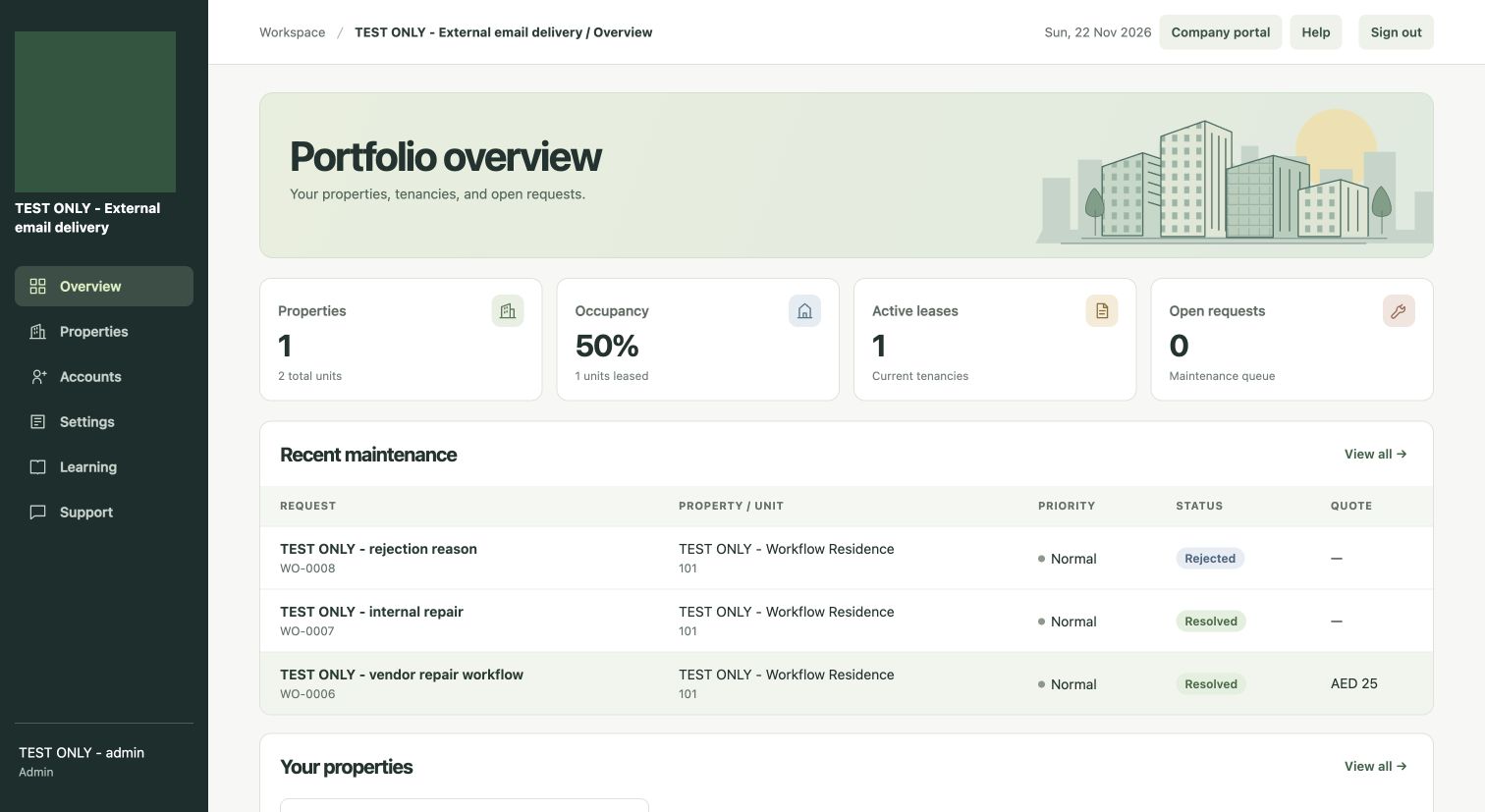
- Properties — Open Properties to choose a building.
- Accounts — Manage staff roles and property access.
- Help — opens guide in a new tab — Open the guide for the current section.
Click the image to enlarge. Example screen from a synthetic test company; available actions depend on your role and record status.