Company administration — people and access
Who uses this guide
Company owners and company administrators. Use the Company administration login, then Accounts and Settings. This is for company staff access; tenant accounts belong in Leasing and vendor accounts in Maintenance → Vendor management.
Add a staff user
- Open Accounts and choose the add-account action.
- Enter the person's full name, a unique username and a password meeting the form requirements (12–128 characters).
- Select the staff role or roles needed for their work. Security roles are separate identities and cannot be combined with other roles in the same account.
- Select the properties they may access. Use all-properties access only where the person's job requires it; company administrator access is company-wide.
- Save, then give that person the company portal link and their department. Verify the account sees the expected property.
A manager can be assigned multiple properties. A tenant or vendor account should not be converted into a staff identity; create a separate staff account instead.
Change access
Open the user's access action, revise the allowed role/property selections and save. Access changes sign the affected user out so they must sign in again. The ordinary staff-access editor cannot modify your own access or the company owner account.
For security reporting lines and gate assignments, use the Security workspace. For a forgotten password or an owner-account change not available in the screen, contact platform support; do not expect a self-service reset button that is not present.
Company branding and settings
Upload the company logo from Settings. Company branding identifies the portal; Finance maintains the parent-company billing identity and details used on invoices and receipts. An optional property logo is separate from the company logo.
All services are part of the package. Chatbot data permissions and property visitor access still require deliberate configuration; inclusion does not automatically permit AI to read private documents or allow guards to register visitors everywhere.
Owner versus administrator
The company administrator manages Learning materials, AI reply enablement and source permissions. The owner can review company conversations but cannot change chatbot permissions or reply as support. Use a separately appointed administrator for those tasks.
Checks and common issues
- Wrong department: choose the login matching the user's assigned role.
- Property missing: verify the account's property assignment and whether the property is archived.
- Guard cannot sign in: check approval status and gate assignment with the head of security.
- Tenant appears absent from Accounts: manage the tenant through Leasing.
- Changed access has not appeared: sign out and sign in again.
Where to click
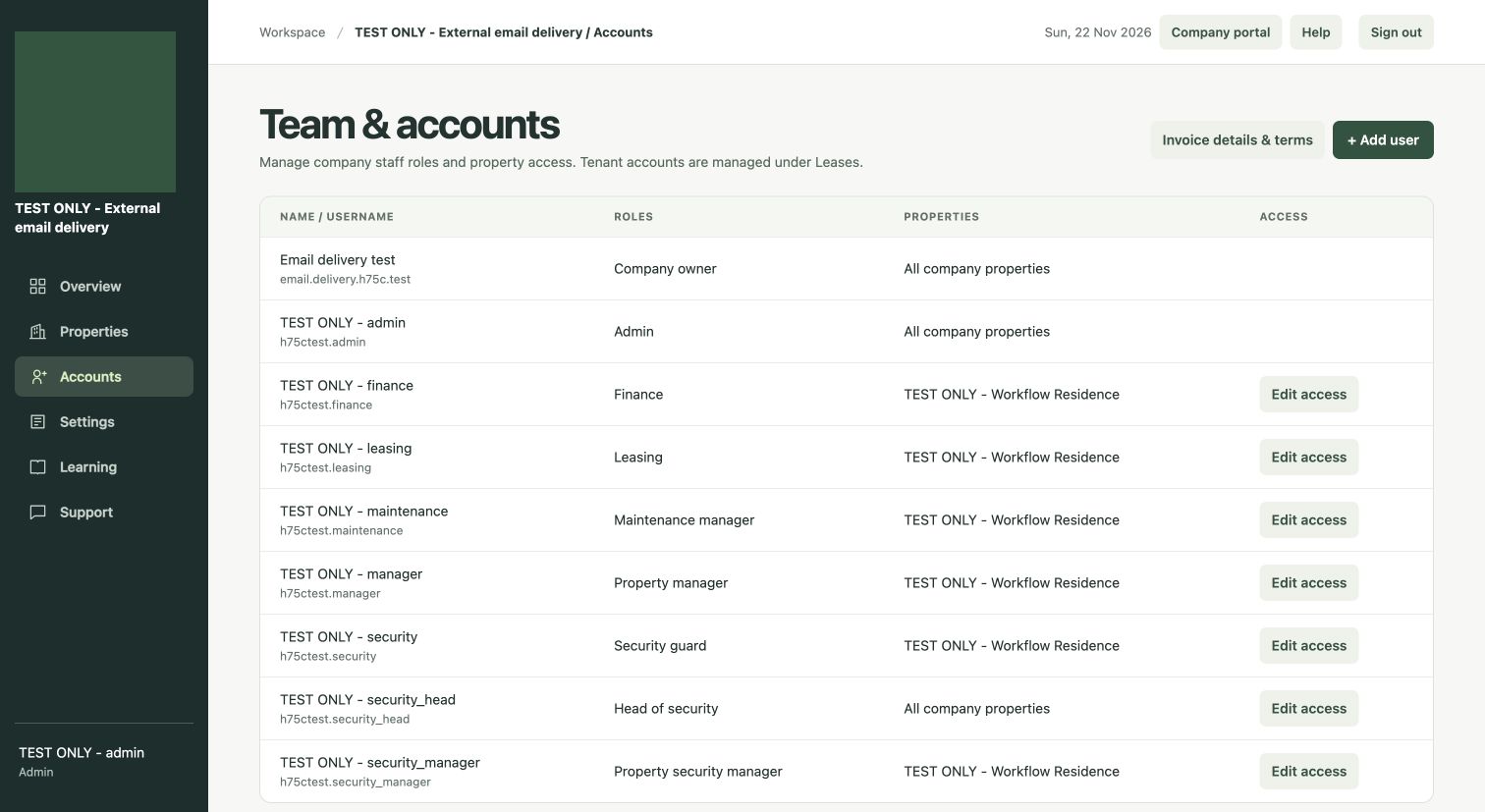
- Accounts — Open company staff accounts.
- + Add user — Add a staff user, then assign their role and properties.
Click the image to enlarge. Example screen from a synthetic test company; available actions depend on your role and record status.