Finance — invoices, payments and receipts
Who uses this guide
Finance staff use the Finance department to maintain payment arrangements and financial records. Company owners/admins and property managers review information and authorized approvals; they do not create invoices or record payments merely by holding those roles. Tenants see only their own billing.
Set the billing identity first
Open the company billing settings in Finance (Company billing identity & terms). Enter the parent company/legal billing name, company address, phone, TRN/tax registration number, terms and conditions, bank name, account name, account number and IBAN. Save, then review a downloaded invoice and receipt. Use the mother company's legal identity rather than automatically using the building name.
The company logo and details appear on PDFs. Bank details appear on tenant invoices. Entering a TRN does not calculate or add VAT; verify the amounts under your company's accounting process.
Review a new lease's payment arrangements
- Open the lease proposal waiting for Finance review and inspect the contract and agreed charges.
- Choose Complete Finance review.
- Enter the amount, due date, payment method and reference for each line. Cheques require a cheque number/reference and bank.
- Add another payment for a charge if splitting it across cheques. The split total must still equal that charge's agreed amount.
- Optionally attach a cheque/payment image or PDF, at most 2 MB per attachment.
- Confirm Received / arrangements verified for the agreed instruments or arrangements, then submit to Management.
- If the agreement is wrong or incomplete, Return to Leasing with a clear reason rather than changing the agreed total.
Received is not paid. Receiving a cheque or verifying arrangements does not mark an invoice paid. Management approval creates invoices from the schedule; actual payment is recorded separately.
Invoices and payment tracking
- Review invoices generated after lease approval. Create a separate invoice only for a genuine additional charge not already generated.
- Open an invoice and check the tenant, property/unit, description, issue/due dates, amount and balance.
- When payment has actually been confirmed under your process, select Record payment.
- Enter amount, payment date, method and reference. Partial payments are supported; a payment cannot exceed the outstanding balance.
- Save and check the updated balance/payment history.
- Download the invoice PDF and the receipt for that particular payment. The receipt identifies its payment and invoice; a partially paid invoice remains outstanding for the difference.
The application tracks payments; it does not move money, deposit a cheque, check bank clearance or automatically reconcile a bank feed. Staff must verify real-world payment evidence.
Correct mistakes without hiding history
Use Reverse payment for an incorrectly recorded payment and enter a reason. This changes the tracked balance; it is not a bank refund. To void an invoice, reverse its recorded payments first, then use the void action with a reason. Keep the audit trail and explain the correction to the tenant. Do not record a second payment to compensate for an error.
Reporting and move-out clearance
Use property, status, date and search filters where shown. Export CSV or Export Excel downloads matching records. Reset filters if records appear missing.
For a move-out request, inspect unpaid amounts, deposits and other obligations under your company's settlement process. Give Finance clearance only when you are satisfied, or reject with a reason. The software does not perform a deposit refund simply because you approve a permit.
Daily checklist
Review due/overdue invoices, reconcile payments to external evidence, check partial balances, provide requested PDFs and clear lease/move-out review queues. Refresh before retrying an uncertain save; verify the record was not already created.
Where to click
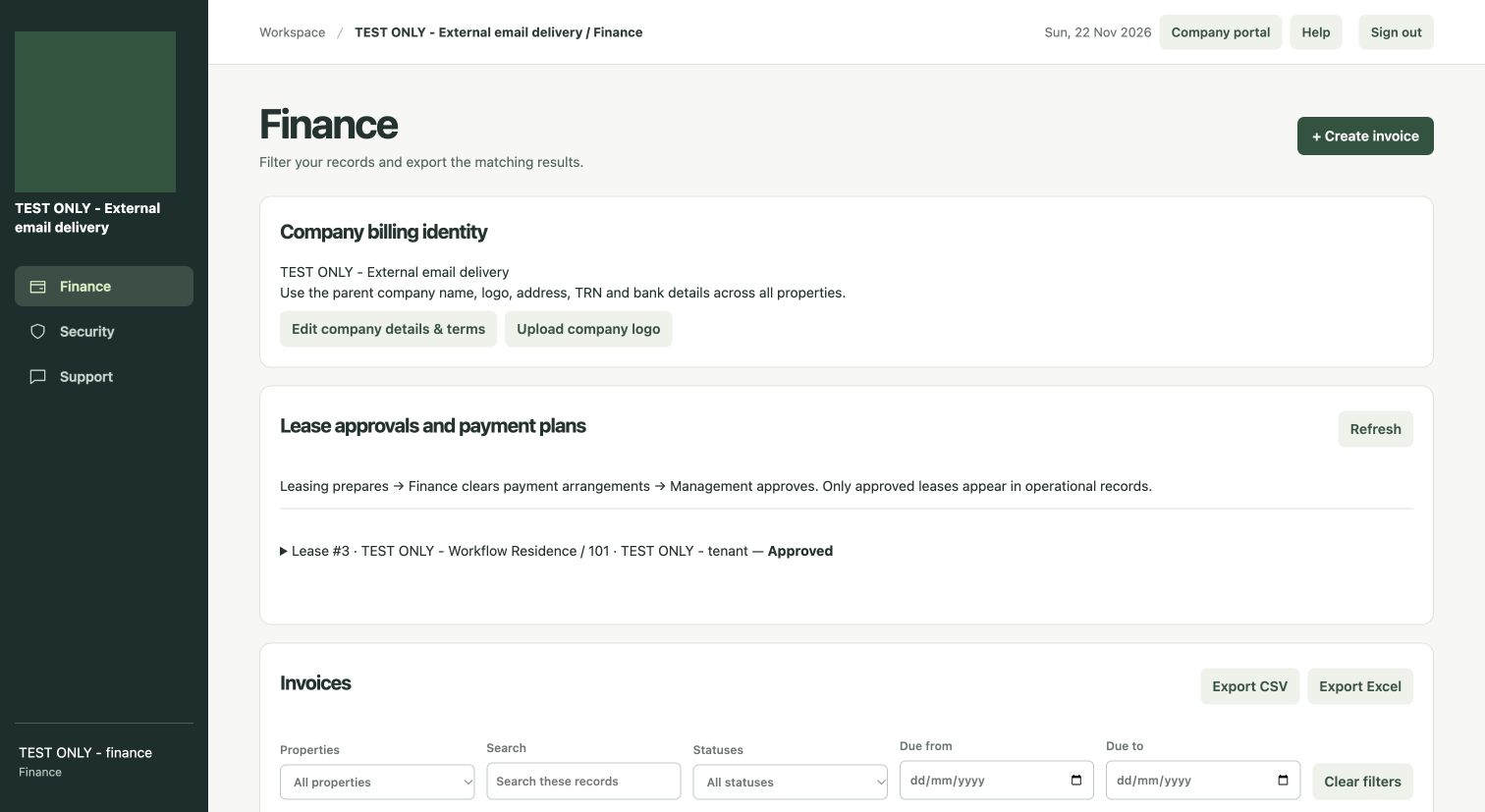
- + Create invoice — Create an invoice for the correct tenant and property.
- Edit company details & terms — Set the legal company name, TRN, bank details and terms.
Click the image to enlarge. Example screen from a synthetic test company; available actions depend on your role and record status.