Maintenance — requests, internal teams and vendors
Workspace and roles
Maintenance opens with the latest requests. Internal team and Vendor management are separate sidebar sections. Tenants submit their own repairs; maintenance staff triage and assign them. Property/company managers browse and approve quotations within their access, rather than creating requests.
Review a request
- Open the request from the list to inspect its property, unit, tenant, description, priority, status and history.
- Check whether more information is needed and coordinate with the tenant through the available contact/support process.
- Accept the request for handling, or Reject it with a written reason. A rejection without a reason is not accepted.
- Assign accepted work to an internal team for that property or a vendor.
- State whether a quotation is required and whether extra parts are needed. If parts are required, describe them; parts-required work requires a quotation.
Assign internal work
In Internal team, add the team's name, property, contact and members. Select that team when assigning the request. A team must belong to the request's property. The maintenance manager records the team's quotation and work updates; adding a team does not create individual technician logins.
For work requiring no extra cost/quotation, assignment can move it directly to Ready for work. Record Begin, then Resolve with a completion note after the work is done.
Assign vendor work
In Vendor management, add the vendor's full name, username/password, email, phone and trade. Choose General work, Electrical work, Plumbing, AC repair, Painting or another available trade. Other lets you supply a new work type. A licence attachment is optional (PDF/PNG/JPEG, up to 2 MB).
The vendor uses its own portal to view assigned work, submit the quotation, begin approved work and resolve it. Maintenance staff cannot perform the vendor's work updates as if they were that vendor.
Open a vendor to edit details or suspend/reactivate it. Suspension prevents new assignment to that vendor and signs it out; review unfinished work and reassign it as appropriate. It does not automatically complete existing jobs.
Quotation and work stages
| Status | Meaning and next action |
|---|---|
| Requested | Awaiting maintenance review |
| Accepted | Accepted, ready for assignment |
| Assigned | Vendor/team assigned; quotation required |
| Awaiting approval | Quotation submitted for an authorized approver |
| Ready for work | Quote approved, or assigned without extra cost |
| In progress | Assigned operator began work |
| Resolved | Completion note recorded |
| Rejected | Maintenance rejected the initial request with a reason |
Authorized finance/management approvers can approve or decline a quotation. Declining returns the job to Assigned for a revised quotation; it does not mean the repair is complete. This is a quotation approval, not the separate two-department clearance used for move-out permits.
Complete and review
- Verify approval before beginning chargeable work.
- Record Begin when work actually starts.
- Record Resolve with a clear completion note after work is finished.
- Check that the tenant sees the updated status.
A resolved job does not automatically create a supplier payment or tenant invoice. Coordinate genuine charges with Finance separately.
Daily checks and troubleshooting
Review latest/unassigned requests, quotes waiting for approval and jobs in progress. Use available filters and staff exports. Tenants need a simple request/status view and do not need CSV/Excel exports. If an action is missing, inspect both the role and current status; work cannot skip required approval stages.
Where to click
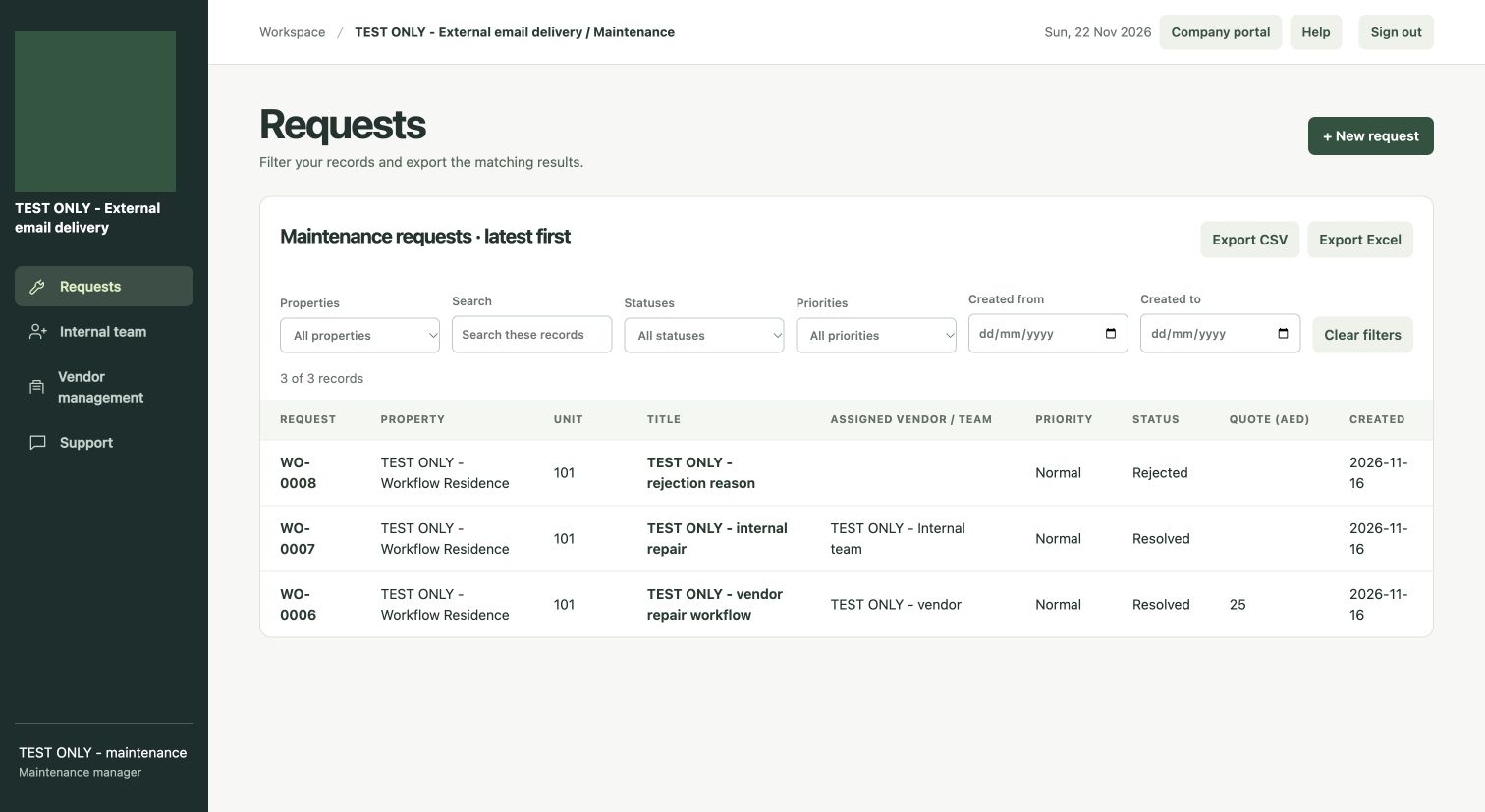
- Requests — Review the latest maintenance requests.
- Internal team — Manage the company maintenance teams.
- Vendor management — Add, edit or suspend external vendors.
Click the image to enlarge. Example screen from a synthetic test company; available actions depend on your role and record status.