Security management — hierarchy, gates and guards
Three levels of responsibility
| Security role | Operates |
|---|---|
| Company Head of Security | Existing company properties, security managers, guard approvals and log oversight |
| Property Security Manager | Assigned property/properties, gates, guard assignments and new guard submissions |
| Security Guard | Assigned active gates, visitor registration and entry/exit |
Use the separate Security login. Security has a separate session from the main application. The head of security is an oversight role: it does not register visitors, perform OCR or operate gates. Property security managers manage their assigned scope; the guards operate the gate desk.
Set up security for a property
- The owner/admin appoints the Company Head of Security.
- The head opens Properties, reviews locations, property types, tenant counts and gate counts, and appoints the property security manager/in-charge for an existing property.
- The property security manager opens their workspace, creates the gates and gives each a recognizable name.
- Mark gates active and choose whether plate information/photo is required.
- Enable visitor logging for that property in the property visitor-access settings.
- Create or assign guards to a property, its security manager and the required gates. Give each person their own account.
Security does not create new buildings in the company portfolio. Ask company administration to add a missing property first.
Approve a newly submitted guard
- A property security manager submits a guard with a username/password, supervising manager and gate/property assignments.
- The head of security reviews Pending guards and verifies the proposed assignment.
- Approve or reject the request. A pending guard cannot sign in as an active guard.
- After approval, test that the guard sees the assigned active gate and no unrelated properties.
A head of security can also add guards directly with the required property, manager and gate scope. Creating a guard account without a gate is insufficient.
Reassign or disable access
Review both property and gate assignments when moving a guard. A gate must belong to an assigned property. Access changes require the user to sign in again. Reassign a manager's guards before removing that manager's property responsibilities. Deactivate a gate when it should stop accepting arrivals; review who is still inside and organize checkout at an authorized gate.
Gate-specific links select a gate but never bypass sign-in or grant access. Do not share a guard account between shifts; use individual accounts so actions are attributable.
Oversight routine
Review Visitor logs, people still inside, long visits and approved permits for each property. Confirm staffing and gate assignments. Security can see the final move-out permit after leasing/finance/management clearance; it does not replace those departmental decisions.
Troubleshooting
- No properties: check role and explicit property assignment.
- No gate: check that the gate is active and assigned to this guard.
- No tenant/unit: check an approved, current tenant-linked lease and property visitor logging.
- Cannot create a guard: check the supervising security manager and allowed gate/property scope.
- Approval controls are absent: a property security manager submits guards; the head approves them.
Where to click
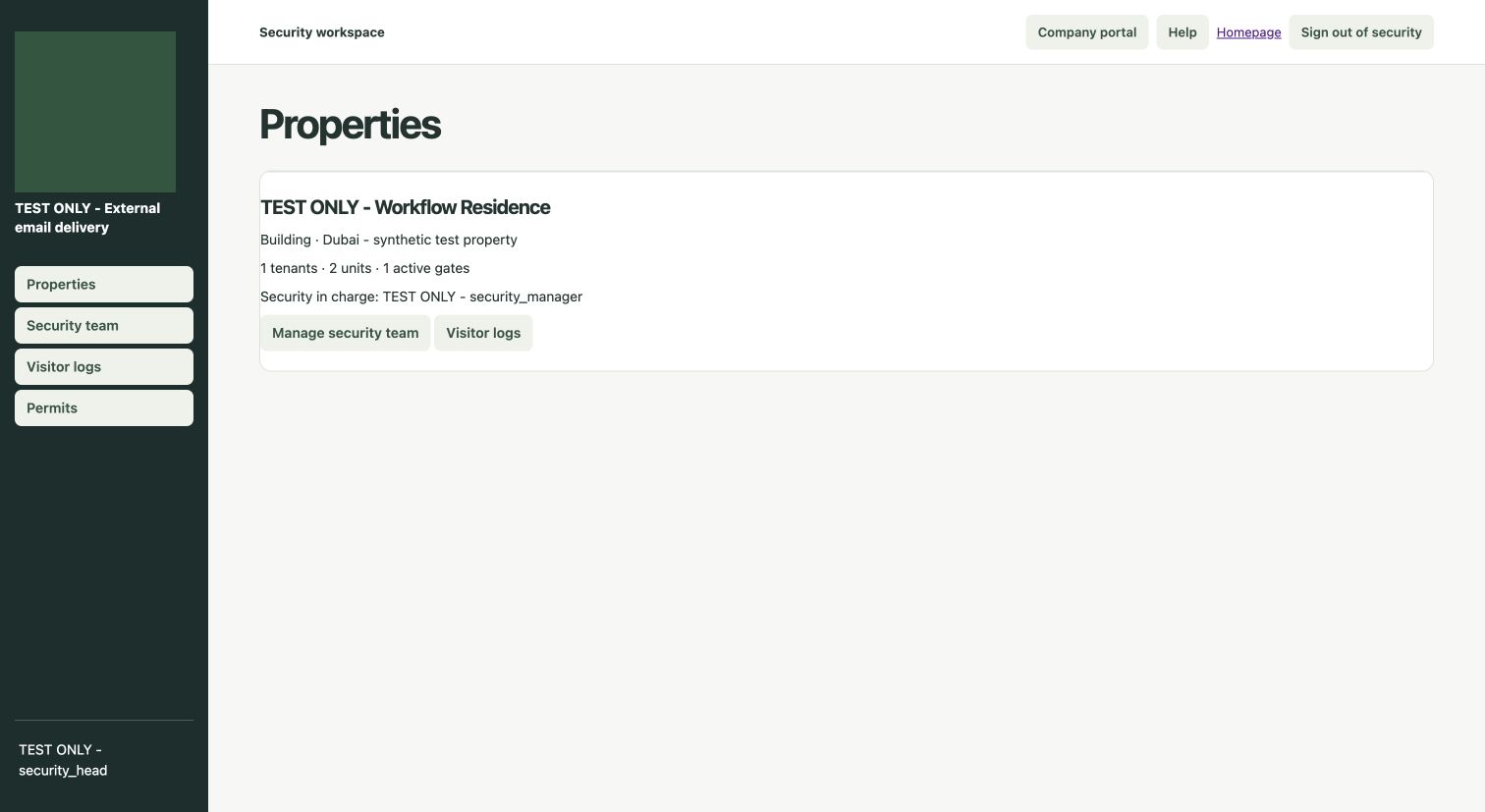
- Security team — Assign security managers and manage guard approvals.
- Visitor logs — Review visitor activity across assigned properties.
- Permits — Review move-out clearance and final permits.
Click the image to enlarge. Example screen from a synthetic test company; available actions depend on your role and record status.