Visitor log — guard desk and tenant approval
Before the shift
Sign into Security as your own guard account. Select the assigned gate and confirm it is the physical gate you are operating. On mobile, use the bottom navigation where shown. Confirm the property has visitor logging enabled and the gate is active.
Register an arrival
- Choose the occupied unit/tenant the visitor intends to see. Only eligible tenant-linked leases are available.
- Enter the visitor's full name, mobile, purpose and any relevant notes. For Delivery, choose the delivery company as prompted.
- Capture or upload the ID image and, when needed, a plate image. Gate settings can require plate details. Use the on-screen camera controls or the device file picker; allow camera permission when prompted.
- Review extracted suggestions for the name, ID reference and plate number. Correct errors before continuing. Text extraction assists entry; it is not identity verification.
- Confirm photo review when photos are attached. Follow the site's identity-checking procedure separately.
- Submit the visit once and inspect the resulting status.
PNG/JPEG images are supported; upload/extraction controls enforce image limits, typically 2 MB for the saved image. If capture or extraction fails, use a clearer photo/upload and correct fields manually. Do not invent missing ID details.
What happens after submission
| Tenant preference | Result for a new visit |
|---|---|
| Approve every visit | Pending until tenant approves or declines |
| Automatically approve deliveries | Delivery visits are approved automatically; other visits need approval |
| Automatically approve all visits | All new visits are approved automatically |
Tenants confirm their preference during onboarding and can change it in Visitors. Until a preference is confirmed, approval is required. Changing the preference does not retrospectively approve a pending visit.
The tenant receives an in-app notification and can approve or decline. The application must be open/visible for its periodic refresh; this is not SMS or an operating-system push alert. Tenant notifications do not expose ID numbers or photographs.
Check in and check out
- Wait for Approved. Pending or Declined is not permission to enter.
- Select Check in when entry actually occurs. Approval alone does not record physical entry.
- Monitor Inside now and the visitor log during the shift.
- Select Check out when the visitor leaves. An authorized guard at another gate of the same property can record the exit.
- Review any remaining inside visitors before handing over the shift.
Pending and approved entry passes expire after 30 minutes. An expired pass requires a fresh arrival request; there is no guard override of tenant approval. A checked-in visitor can still be checked out if new visitor logging is later disabled.
Troubleshooting
- Tenant has not replied: keep the visitor pending and use the site's contact procedure; silence is not approval.
- Check in is unavailable: inspect approval, expiry and gate permissions, then refresh.
- Visitor is missing: check gate/property, search and Inside now/history filters.
- Camera blocked: review browser camera permission and use Upload if necessary.
- ID text is wrong: correct it and review the photo before submission.
Logs record the gate, operator and action times. Authorized staff may view private ID/plate details; tenants see the arrival information needed for their decision.
Where to click
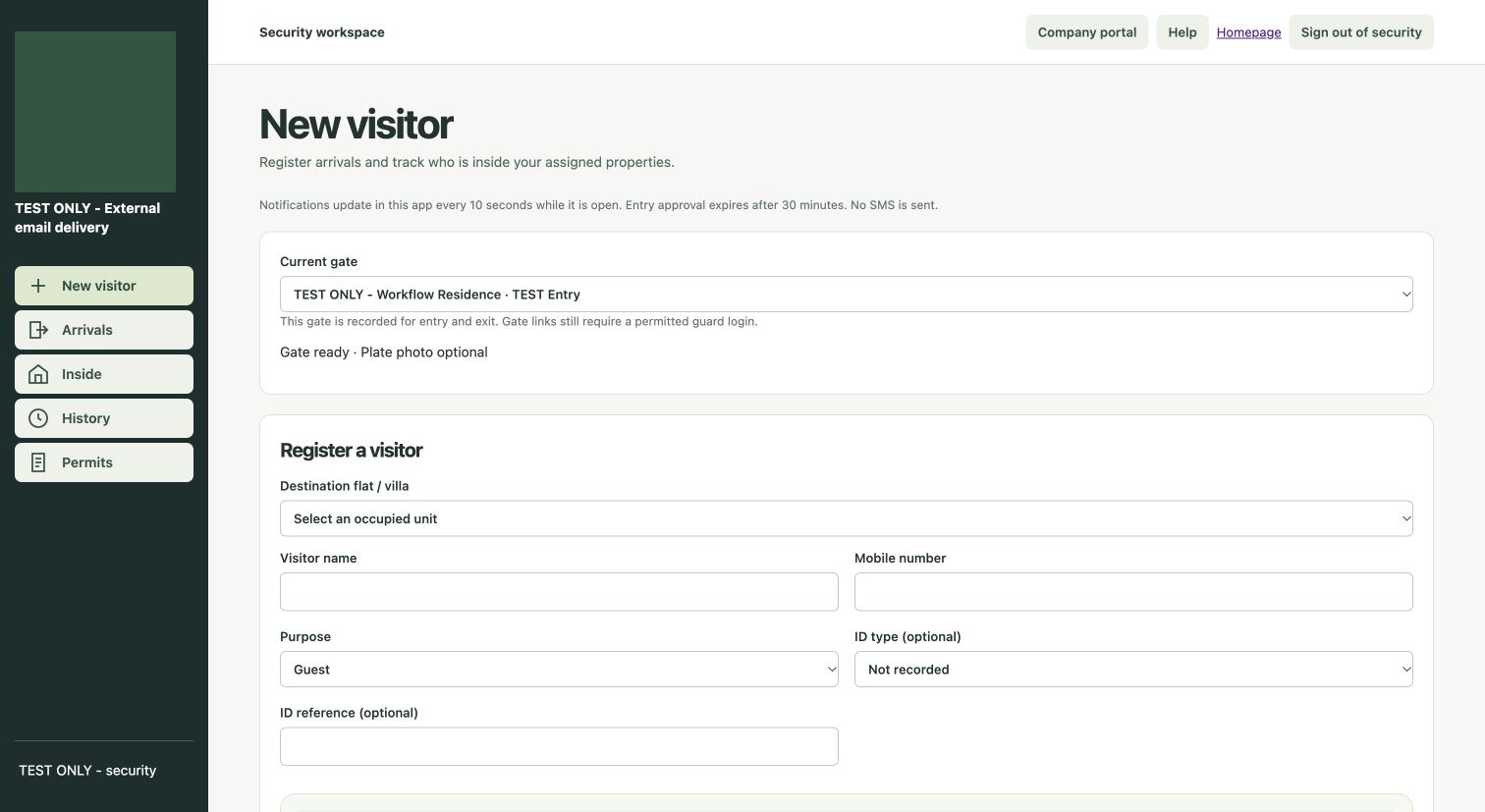
- Current gate — Confirm the gate you are staffing.
- Destination flat / villa — Choose the occupied unit receiving the visitor.
- Arrivals — After submission, review the tenant decision before check-in.
- Inside — Use Inside to check out visitors when they leave.
Click the image to enlarge. Example screen from a synthetic test company; available actions depend on your role and record status.