Learning centre — AI permissions and human support
Responsible role
The company administrator controls Learning. Company owners can review company chats but cannot activate/deactivate AI, change its tenant-data permissions, edit learning material or reply as support. Use the correct administrator account, not the owner account, for setup.
Configure Assistant access
- Open Learning → Assistant access.
- Select Enable AI replies when you are ready to allow AI responses.
- Select Published general knowledge for published company/property material.
- Decide separately whether to permit Tenant lease details; Tenant invoices, balances and payment history; Tenant maintenance status; and Private lease documents.
- Save permissions. Test with a tenant account and a question whose answer you can independently verify.
Enabled sources may be sent to OpenAI to answer questions. Private records are limited to the signed-in tenant's permitted data. Having all services included does not turn on every private-data permission. These permissions do not authorize the assistant to approve leases, record payments or issue permits.
Add learning material
| Section | How to use it |
|---|---|
| Website links | Import a public website link, then inspect the extracted content |
| Documents | Upload supported PDF, Word, Excel or text material |
| Questions & FAQs | Write a question/answer or upload a collection of FAQs |
- Choose the source section and add a descriptive title.
- Set Audience to the appropriate company, property or available private lease scope. A building rule should not inadvertently become company-wide advice.
- Enter the text/link or upload the file. Follow the file format/size rules displayed by the uploader.
- Open the saved material and inspect the text. Scanned/image-only files may not yield usable learning text; supply readable text if necessary.
- Edit incorrect or outdated content, then publish it when approved.
A website import captures content at import time; do not assume it continuously follows website changes. A saved draft is not automatically published for answers.
View, edit, pause and delete
Open a material's title to view it. Use Edit to change its title, audience or learning text. Publish makes eligible material available; Pause removes it from AI use while retaining it for later. Delete removes it from active learning; use the deleted-material view and Restore where available. After restoration, check its publication state before expecting it in answers.
Review material whenever policies, contacts, opening hours or property rules change. Avoid contradictory published FAQs. Test again after changing permissions or publication state.
Tenant questions and human handoff
The tenant opens Chat and asks a question. AI uses the permitted learning and tenant sources. If the tenant requests a human or the assistant escalates, the conversation enters the Support queue.
Authorized support staff open Support, claim/take over the conversation, reply, and mark it resolved when finished. A colleague who has already claimed a thread must coordinate before another person takes over. The tenant sees staff replies in the same conversation. The company owner may review the conversation but is not a replying support agent.
Email escalation
The administrator can configure an escalation address. Email delivery also needs the server's support-email sender configuration. Registration verification mail and support escalation are separate configurations; a working verification email does not prove escalation mail is ready. If the interface reports email unavailable, continue in-app handoff and contact platform support to configure the sender.
Troubleshooting
- No AI answer: check Enable AI replies, server AI readiness and any displayed error.
- General answer is missing: check publication, pause/deletion state, audience and source quality.
- Lease/balance answer is missing: check the corresponding permission and tenant/lease linkage.
- Wrong answer: correct the source, pause misleading material and escalate to a person. Do not use an AI answer as evidence of payment or approval.
- Controls are read-only: verify company administrator privileges; owner access intentionally differs.
Where to click
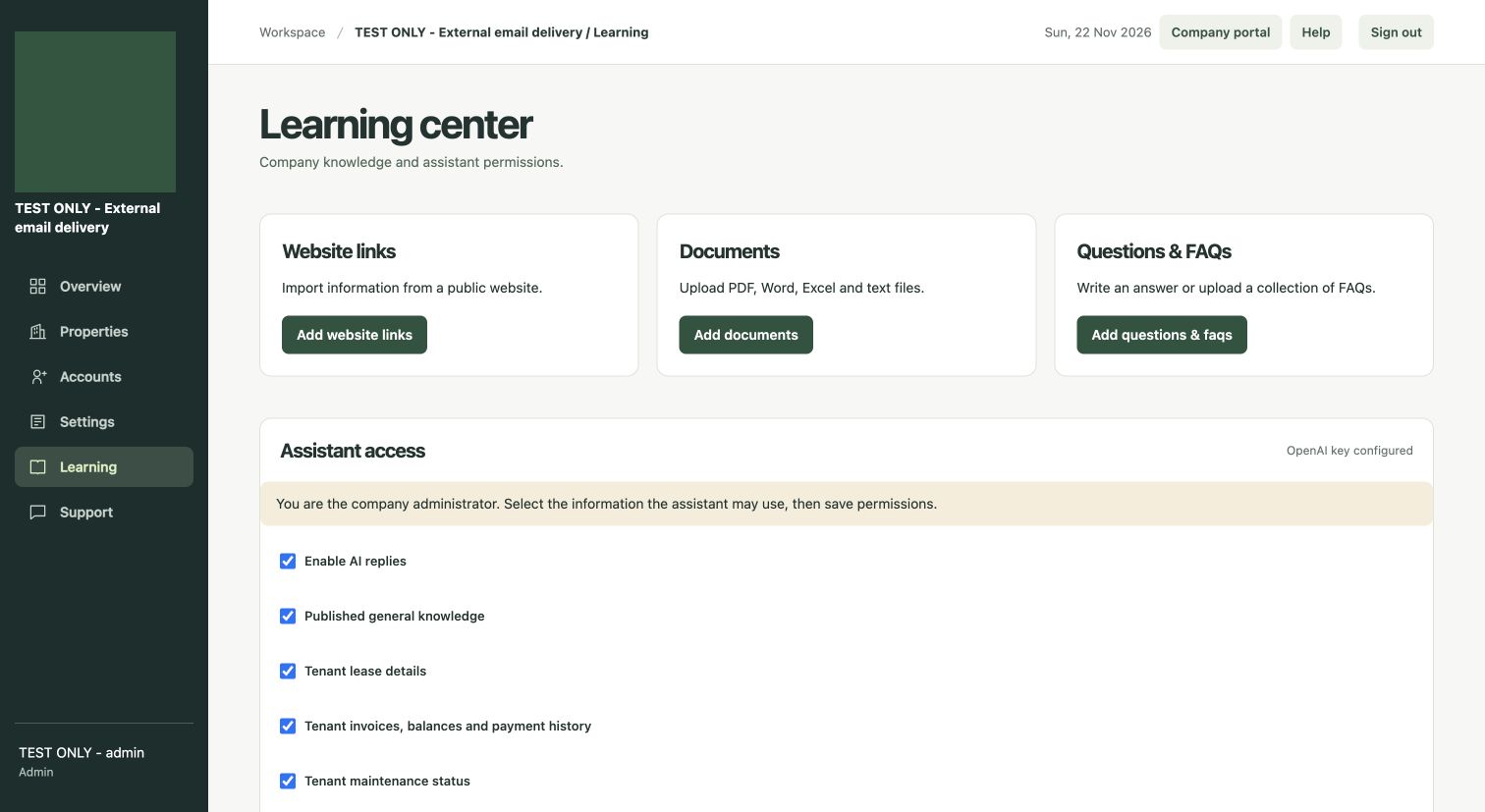
- Add website links — Import information from a website.
- Add documents — Upload reference documents.
- Add questions & faqs — Write answers or upload FAQs.
Click the image to enlarge. Example screen from a synthetic test company; available actions depend on your role and record status.