Tenant portal — everyday tasks
First sign-in
Use the Tenant portal link on your company's branded page and your own credentials. Leasing creates your account and links it to your tenancy. Confirm your visitor approval preference when prompted. On mobile, use the bottom navigation to reach the available sections.
Your portal shows your own linked records. A single-tenancy user should not need to choose the property repeatedly. If your lease or unit is missing, ask Leasing to check account linkage, approval and dates.
Your lease and documents
Open Leases to see the property/unit, tenant name, start/end dates, agreed rent and status. Select Preview for an attached document; use the preview's download/open controls when needed. No document is shown until Leasing attaches it. You cannot edit or approve the contract from this screen.
Maintenance
- Open Maintenance → New request.
- Describe the fault and location clearly and choose an appropriate priority.
- Submit once and inspect its status.
- Open the request to follow assignment, progress or a rejection reason.
You are requesting work, not assigning a vendor or approving a quotation. A missing active lease can prevent submission; contact Leasing rather than making an unrelated request. Use your property's emergency contact process for urgent danger instead of waiting for app review.
Billing
Open Billing to see invoices, outstanding balance and payment history. Download invoice PDFs and receipts for recorded payments. A bank transfer or cheque is not reflected until Finance records it; send payment queries/evidence through your company's agreed process. The portal tracks billing and does not itself initiate a bank transfer.
Visitors
Choose whether to approve every visit, auto-approve deliveries only or auto-approve all visits. For pending arrivals, check visitor details and approve or decline. Saved preferences affect new arrivals, not existing pending ones. Keep the app open for in-app updates; SMS and background push are not part of this notification flow.
Guard check-in/check-out records physical arrival and departure separately from your approval. Your notification does not include the visitor's private ID photos or ID number.
Moving out
Open Move permits, enter your planned date and notes, then submit. Leasing and Finance must clear the request before Management approves it. Wait for final Approved status. Read rejection notes and resolve the problem before making a new request. Approval does not automatically settle bills or end the lease.
Chat
Open Chat for general questions. It can answer about your lease/billing only where your company administrator has enabled those sources. Request human support for a specific issue or uncertain answer; staff replies appear in the same thread. Chat is not a substitute for a formal maintenance request, payment record or move-out permit.
Need help?
Contact Leasing for lease/account details, Finance for invoices/payments, Maintenance for repair handling and the property/security team for visitor access. Include the relevant record number and description, not another user's password.
Where to click
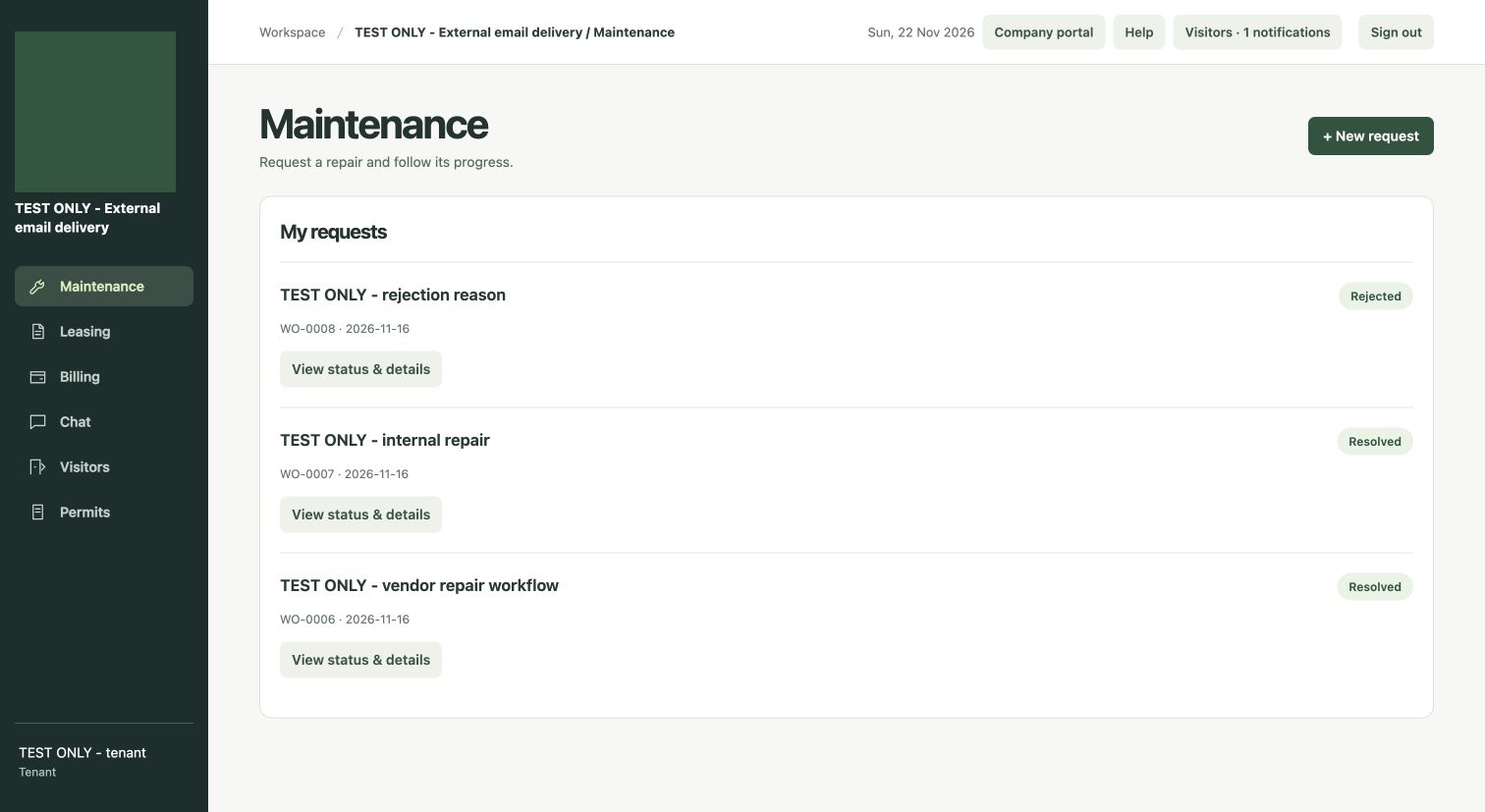
- + New request — Request a repair for your tenancy.
- Leasing — View your lease summary and attachments.
- Billing — Check invoices, receipts and outstanding balances.
Click the image to enlarge. Example screen from a synthetic test company; available actions depend on your role and record status.
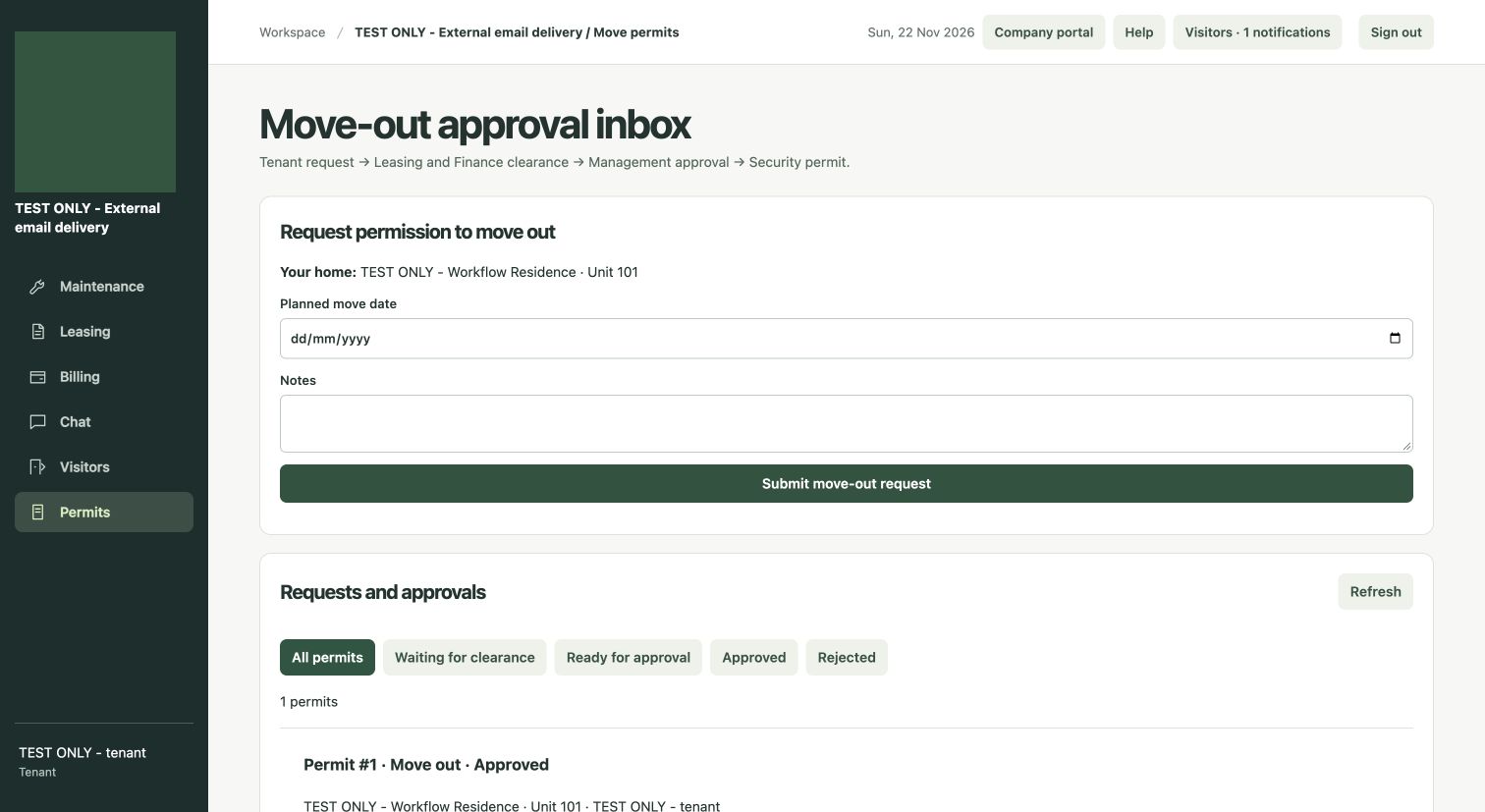
- Permits — Open your move-out requests.
- Submit move-out request — After entering the move date and notes, submit for Leasing and Finance clearance.
Click the image to enlarge. Example screen from a synthetic test company; available actions depend on your role and record status.