Vendor portal — quotations and work updates
Getting access
The maintenance manager creates your vendor account and trade profile. Sign in through the company's Vendor portal with your individual credentials. You see work assigned to your vendor account, not the full property portfolio.
Handle an assigned repair
- Open the assigned request and review the property/unit, issue, priority and notes.
- Inspect the quotation/parts requirement and coordinate attendance with the maintenance team under the property's process.
- If quotation is required, submit the amount and a clear note describing the proposed work and parts.
- Wait for approval. Awaiting approval does not authorize chargeable work.
- When Ready for work, record Begin when work starts.
- On completion, record Resolve and a useful completion note. The tenant and maintenance team can then see the resolved status.
If the quotation is declined, the job returns to Assigned so you can revise the quotation with the maintenance team. Do not mark it resolved to bypass approval.
Access or detail changes
Ask Maintenance → Vendor management to edit your contact details/trade or optional licence attachment. A suspended vendor cannot sign in or receive new assignments until reactivated. If a job is missing, check that it was assigned to your account, not another vendor or an internal team.
Financial distinction
An approved quotation is permission in the repair workflow. It is not proof of vendor payment and does not automatically create a supplier invoice/payment. Coordinate invoicing and settlement with the company separately.
Where to click
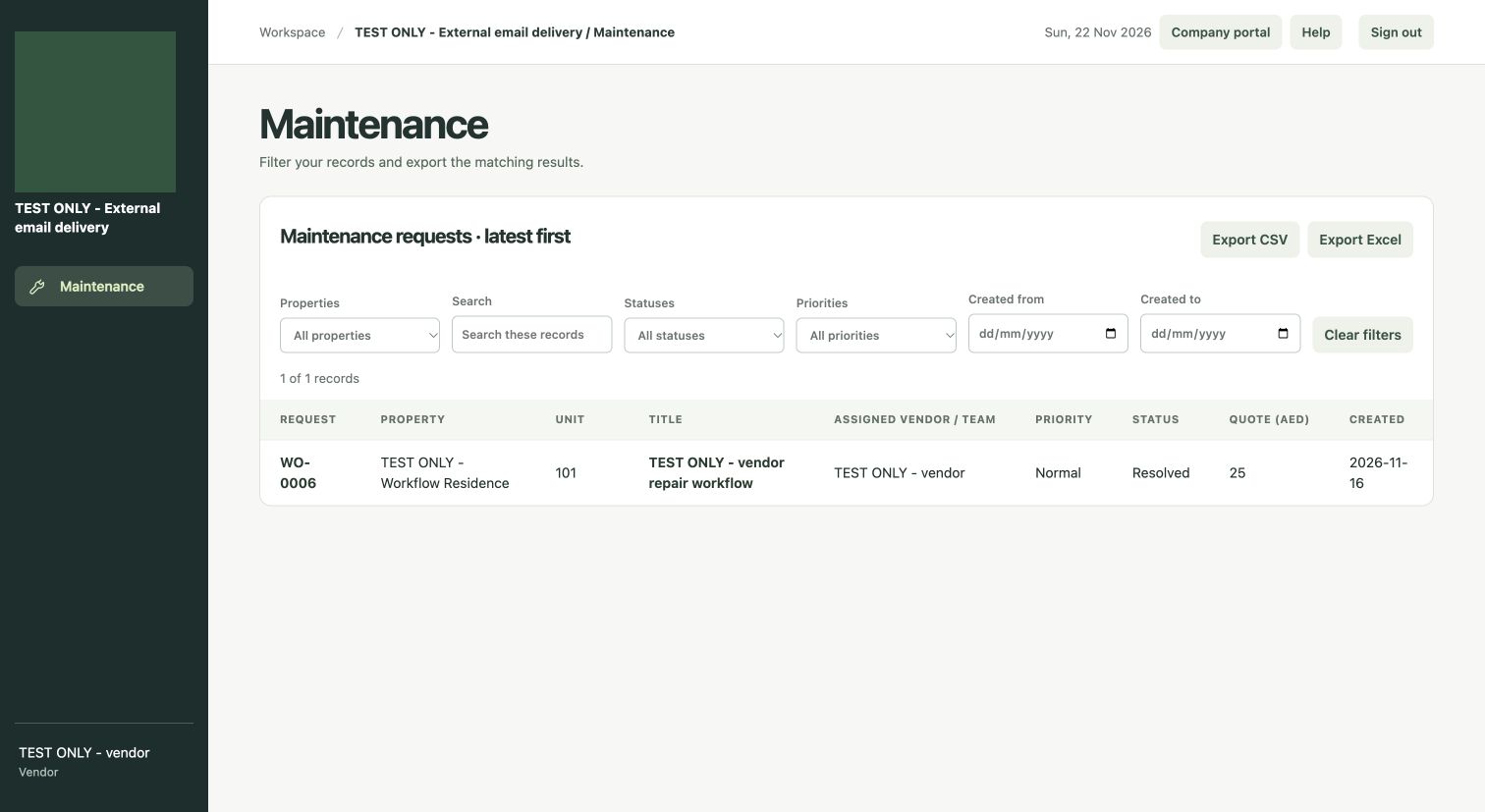
- Maintenance — Open the requests assigned to this vendor.
- Help — opens guide in a new tab — Read quotation and work-status instructions.
Click the image to enlarge. Example screen from a synthetic test company; available actions depend on your role and record status.